Local Inventory Ads: Data Requirements and Why Products Get Disapproved
Most guides treat this format as an opt-in growth channel you switch on when you are ready. Merchant Center does not treat them that way. The local marketing methods are opted in for all products by default, which is why plenty of retailers meet local inventory ads for the first time as a wall of disapprovals rather than as a campaign decision.
This guide covers what the data has to contain, the five ways to get it into Merchant Center, which product page the clicks land on, and the handful of mismatches behind almost every failure.
Quick Summary
Local inventory ads are Shopping ads that show a product is available in a specific physical store. They run on store level data submitted to Merchant Center and matched to a linked Google Business Profile. Once a local inventory source exists, they serve by default in Shopping, Performance Max and Demand Gen campaigns.
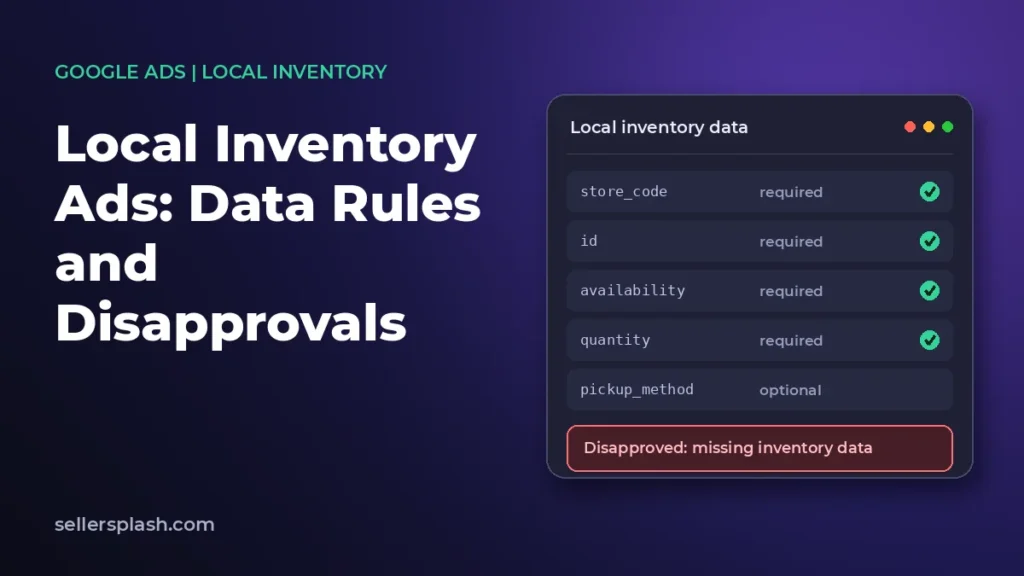
- Four attributes do the work. Store code, product ID, availability and quantity are the required core of a local inventory data source.
- Store codes and product IDs are case sensitive. A store code must match the Business Profile exactly, and the inventory ID must match the primary product data ID exactly.
- Availability and quantity are reconciled downward. Where both are submitted, the lower classification is the one that applies.
- Store level values override product level values. A price or pickup setting in the inventory source replaces the one in the primary product data for that store.
- Online only stores should remove the add-on. Google's policy is explicit that online only businesses should not use these programs, and leaving the add-on on produces missing inventory data errors.
- Google reports a lift for omnichannel retailers. Its own figures for retailers running this format alongside Shopping ads show a 21% increase in store visits and a 9% increase in online conversions for products available in store.
The required and conditional fields in a local inventory data source, before any pickup or loyalty extras.
| Attribute | Status | Accepted values | Limit |
|---|---|---|---|
store_code |
Required | Your own store identifier | 64 characters, case sensitive, must match Business Profile |
id |
Required | Same value as the primary product data ID | 50 characters, case sensitive |
availability |
Required | in_stock, limited_availability, on_display_to_order, out_of_stock |
English values only |
quantity |
Conditional | Whole number | 3 or more reads as in stock, 1 to 2 as limited, 0 as out of stock |
price |
Conditional | Number plus ISO 4217 currency | Overrides the product data price for that store |
pickup_sla |
Conditional | same day, next day, 2-day through 6-day, multi-week |
Required for in-store pickup items |
Table: core local inventory attributes as set out in Google's local inventory data specification.
Running stores and a website off one catalog and seeing errors you did not create? Talk to Seller Splash about Google Shopping and Merchant Center management.
What Are Local Inventory Ads?
The format is a paid Shopping listing that tells a shopper a product is in stock at a named store near them. They are built from the same catalog as your online Shopping ads, with a second layer of store level data on top, and they can appear on Google Maps as well as in Search.
The requirement that decides everything else is physical retail. Google's policy is that a retailer needs a brick-and-mortar store a customer can walk into and buy the item, physically located in the country being targeted. Online checkout and shipping requirements from the standard Shopping ads policies do not apply, because the transaction is expected to happen in the store.
Both programs are available in roughly fifty countries, including the United States, the United Kingdom, Canada, Australia, Germany and India. Store visit measurement is narrower than that, so a country being eligible for the ads does not mean it is eligible for the reporting.
What Is the Difference Between Local Inventory Ads and Free Local Listings?
Free local product listings show your in-store products across Google at no media cost. The paid version runs on the same data, with access to more placements and the ability to carry store pickup annotations such as same day or next day pickup.
The practical point is that both run off one local inventory data source. You are not building two integrations. You are enabling one or both as destinations on the same data, which is why the decision is a budget question rather than a data question.
- Free local listings cost nothing to serve and are the sensible first step while data quality is still settling.
- Local inventory ads need a campaign and a budget, and they are what unlocks the pickup annotations.
- Both depend on the same store codes, the same product IDs and the same availability values.
One caution on sequencing. Running the free listings first gives you a low risk way to find out whether your store data is accurate, because the disapprovals surface either way. Paying for traffic on top of wrong inventory data simply buys clicks to products the shopper will not find on the shelf.
Why Do Online Only Stores Get Missing Inventory Data Errors?
Because the local marketing methods are opted in for every product by default. Google's own troubleshooting documentation states that both local programs are opted in for all products, so anything not sold in a physical store will show a missing inventory data error. The error is not a sign that something broke. It is a sign that a program you may never have chosen is expecting data you have no reason to send.
This is the single most common way the topic reaches a retailer. The fix depends on whether you have stores at all.
- No physical stores. Remove the add-on. In Merchant Center, open Settings, then your add-ons, then remove the local card. The expectation disappears with it.
- Stores, but some products are online only. Keep the add-on and opt the online only products out with the excluded destination attribute, using the repeated field operator rather than a standard one.
- One data source carrying both online and local offers. Open the source settings and clear the physical store marketing methods, otherwise the source keeps expecting inventory for everything in it.
That second point is worth dwelling on. Google's documentation notes that standard operators can stop online exclusive products being opted out correctly, and that the attribute alone may not override the expectation while a local marketing method is still active at the data source level. A rule that looks correct in the interface can still leave the disapprovals in place.
If the products in question are already disapproved for other reasons, work through Merchant Center suspensions and disapprovals first, because a product that cannot serve online will not serve locally either.
What Does Local Inventory Data Have to Contain?
A local inventory data source is a per store row for every product you stock, keyed on store code and product ID. The four required pieces are the store code, the product ID, the availability value and, in practice, the quantity. Everything else is conditional on which features you use.
Two of those four cause most of the trouble. The store code has a 64 character ceiling, is case sensitive and has to match the store codes on your linked Business Profile exactly. The product ID has a 50 character ceiling, is also case sensitive, and has to match the ID in your primary product data exactly. Neither will tell you it is nearly right.
How Do Quantity and Availability Interact?
Where both are submitted, the lower classification wins. Google reads 3 or more units as in stock, 1 to 2 units as limited availability, and 0 as out of stock, and if the submitted availability value and the quantity disagree, the more conservative of the two applies.
The effect is that a generous availability value cannot rescue a thin quantity. Sending in_stock with a quantity of 1 produces a limited availability listing, not an in stock one. That is usually the right outcome, but it surprises teams who assume the availability field is the authority.
What Overrides What?
Local inventory data sits on top of the primary product data and replaces specific values for specific stores. Knowing the direction of that override is what stops two sources quietly fighting each other.
| Value | Set in primary product data | Set in local inventory data | Which applies in store |
|---|---|---|---|
| Price | National default price | Store level price | The local inventory value |
| Sale price | National sale price | Store level sale price | The local inventory value |
| Availability | Online availability | In-store availability per store | The local inventory value |
| Pickup method | Account or product default | Store level pickup method | The local inventory value |
| Pickup SLA | Account or product default | Store level pickup SLA | The local inventory value |
| Loyalty price | Program level member price | Store level member price | The local inventory value |
Table: how store level values in a local inventory data source override the equivalents in primary product data.
Google also recommends submitting all products in a single file for both local inventory ads and free local listings, with an existing source switched to cover local and online stores together. If you do split them, the instruction is not to submit the same products in both. The clean data work behind this is the same discipline covered in Google Shopping feed optimization.
How Can You Supply Local Inventory Data Without Building a Feed?
There are five routes into Merchant Center, and only one of them is the per store file most guides describe. The right choice depends on how much of the catalog needs covering and how much engineering time you have.
| Route | Coverage | Refresh | The catch |
|---|---|---|---|
| Ship products to your store | Derived from pickup SLA and pickup method | Follows your product data | Local inventory ads only, not free local listings |
| Automatic crawl of your site | A subset, the top product and store pairs | A limited number of pairs per day | Incomplete by design, and Googlebot and StoreBot must not be blocked |
| Website reported autofeeds | Full, as shoppers check stock | Real time | Requires a Google Tag Manager implementation |
| File upload or hosted file URL | Whatever you put in the file | Hosted URLs sync every 24 hours | Format errors create account level errors |
| Merchant API | Full, from your inventory system | As often as you push | Needs a real technical integration |
Table: the five supported routes for getting local inventory data into Merchant Center.
Google recommends refreshing local inventory data daily, which is the number that should decide the route. A hosted file that syncs once every 24 hours is adequate for a slow moving catalog and inadequate for one where a popular size sells out by lunchtime.
Is the Automatic Option Good Enough to Start With?
It is good enough to test with and not good enough to run on. Google describes the automatic in-store inventory feature as designed to scale to a subset of products, crawled by StoreBot and prioritised by the product and store pairs with the highest share of clicks. Products that were themselves added automatically from your online shop are not eligible for it.
There is one operational detail worth writing down before you switch it on. If you stop automatic inventory for a country, the data stops updating and is removed after 14 days, and products with no other inventory source stop appearing on Google. Removing the data source entirely clears local data for every country at once.
Retailers on Shopify have a sixth, platform specific route. Shopify syncs local inventory through the Google and YouTube channel, but it requires Shopify POS, physical retail locations with inventory tracked at each one, and at least 10 products. Google reviews the products within 3 to 5 business days, and Google's guidance for that path is explicitly not to use manual feed rules on top of it.
Which Product Page Experience Should You Use?
The click has to land somewhere that confirms what the ad said, and Merchant Center offers three experiences for that. The choice is not cosmetic, because two of the three impose requirements on your own site.
| Experience | Where the shopper lands | What your site has to do |
|---|---|---|
| Product page with in-store availability | Your normal product page | Show price and a store selector the shopper uses to see in-store availability |
| Store specific product page | A page for one store | Accept a {store_code} link template parameter and show that store's availability and price with no interaction |
| Product page without in-store availability | A Google hosted page | Nothing, but pickup today and pickup later annotations are no longer shown |
Table: the three product page experiences for local inventory ads and what each one requires.
Switching between them is heavier than it looks. Google's documentation says the current experience must be approved before you can change it. Moving to the Google hosted option means removing your existing setup and onboarding again.
Serving does continue while the new experience is under review. Even so, treat a change of experience as a project rather than a setting.
How Do Store Pickup Options Work?
Store pickup turns a local listing into an online transaction with an in-store collection. Two features sit on top of the base setup, and each has its own verification.
How Does Pickup Today Work?
Pickup today advertises that a product can be collected the same day or the next day after the order is placed. The SLA value is either same_day or next_day, set in the shipping and returns section of Merchant Center, or in the inventory data when pickup is only available at some stores.
The timing behaviour is the part that catches people out. Google switches to the next day annotation two hours before the closing time listed on your linked Business Profile, so a same day SLA starts displaying as pickup tomorrow late in the trading day. That makes your Business Profile opening hours a live input into your ad copy, not a directory listing.
- Your site has to support it. The landing page or checkout must offer same or next day pickup, and the shopper has to be able to buy or reserve for collection.
- Fees have to be disclosed. Any pickup fee must be shown, for example at checkout.
- Customers have to be told the order is ready, by email or SMS.
- Google reviews an example URL. Statuses run Verified, Under review for up to a week, Request review, or Action required.
pickup_methodis now optional. Google has recommended since 1 September 2024 that it is not included.
One compliance change is already in force. Since 30 September 2026, the pickup_cost attribute is required in the United Kingdom, the European Union and the EFTA countries where pickup costs apply on your website. The supported range runs from 0 to 1000 in the submitted currency, and the value has to match the fee the customer actually sees.
What Does On Display To Order Mean?
on_display_to_order is the availability value for items a shopper can see in your store but cannot carry out of it, such as furniture. The listing shows as displayed in store and available to order, and the shopper visits to look at the item and then orders it for delivery or collection.
It is gated. You have to be already serving approved local inventory on Google before the feature can be enabled, the on display in store URL goes through a review that can take up to a week, and you cannot request inventory verification for these products until that URL is verified. The landing page has to show an approximate delivery time and full shipping cost and policy, and if a different variant is the one on display, the page has to say so.
Which Campaign Types Serve Local Inventory Ads?
Shopping, Performance Max and Demand Gen campaigns all serve this format by default once a local inventory source exists in Merchant Center. There is no separate local campaign type to create, which is precisely why the budget question needs answering deliberately.
The decision is whether local and online share a budget.
- One campaign for both. Reasonable if you are newly onboarded, want to optimise for omnichannel return on ad spend, and do not hold separate budgets.
- A Performance Max campaign for store goals. The route when in-store results need their own budget and their own priority.
- A separate Shopping campaign targeting local offers only. The most controllable option, and the one that makes local spend legible in reporting.
Store visit and store sales goals are only available to eligible accounts, and Google's own guidance is to use an omnichannel Performance Max campaign where they are not. If you are structuring campaigns around this, the trade-offs in Performance Max for ecommerce and the inventory split logic in Google Shopping campaign priority both apply here.
Why Do Local Inventory Ads Fail Most Often?
Almost every failure is a mismatch between two systems rather than a broken ad. The table below maps the causes Google documents to the fix for each.
| Symptom | Underlying cause | Fix |
|---|---|---|
| Missing inventory data on every product | Local add-on active with no physical stores | Remove the local inventory ads add-on |
| Missing inventory data on some products | Online only items still opted in | Excluded destination using the repeated field operator |
| Rows never match a store | Store code differs from the Business Profile, including by case | Correct the codes and re-upload the source |
| Inventory rows ignored | Inventory ID does not match the primary product data ID | Align IDs exactly, including case |
| Data source behaves oddly | Set up as a supplemental source instead of a local product inventory source | Recreate it with the correct source type |
| Stores not visible in Merchant Center | Business Profile unclaimed, disabled, or missing store codes | Fix in Business Profile, then allow up to 24 hours to sync |
| Availability disputed against the landing page | Feed value and on-page structured data disagree | Make the feed, the page and the structured data say the same thing |
| Pickup annotations missing | Google hosted product page experience in use | Move to one of the two on-site experiences |
Table: documented causes of local serving failures and the corresponding fix.
Two timing notes make the difference between a real problem and an impatient one. Business Profile changes take up to 24 hours to appear in Merchant Center, and Google asks for 24 to 48 hours of processing after inventory updates. Judging a fix before that window closes is how teams end up changing three things at once.
How Do You Measure Whether Local Inventory Ads Worked?
Local performance has to be separated from online performance before any of it means anything, and the mechanism differs by campaign type. In Shopping campaigns you segment by click type to compare local clicks against standard Shopping clicks. In Performance Max you add the channel dimension in Report Editor, or read it in the listing groups tab at asset group level.
For in-store outcomes the columns are store visits, supported by the store report, and store sales where the account is eligible. Google's guidance for estimating in-store revenue is to measure online conversions, capture revenue information, and then assign conversion values to store visits or store sales.
- Channel split first. Without it, local clicks inflate what looks like online performance.
- Store visits are modelled, not counted. Treat them as a directional signal, which is why assigning a value to them is a decision rather than a calculation.
- Watch the disapproval count as a performance metric, because local coverage falls silently when store codes drift.
- Review on a fixed cadence, using the same rhythm described in how to monitor PPC campaigns.
The honest framing is that local performance is measured less precisely than online Shopping performance. It is still worth running for retailers with stores. The alternative is paying for a click that offers a nearby shopper a shipping option when the product sits three miles away.
Google's reported figures for retailers running both, a 21% increase in store visits and a 9% increase in online conversions on products available in store, are the company's own data rather than an independent study. Read them as direction rather than as a forecast.
Why Ecommerce Retailers Choose Seller Splash
Feed work is the job, not the preamble. Local serving lives or dies on store codes, product IDs and availability values matching across Merchant Center, a Business Profile and a website. That reconciliation is ordinary work for us rather than a project nobody owns.
Omnichannel budgets stay legible. We structure campaigns so local and online spend can be read separately, because a single blended number hides whichever of the two is subsidising the other.
Disapprovals get treated as a standing metric. Local coverage degrades quietly. We monitor the error counts rather than discovering a gap when revenue drops.
Where Should You Go Next?
- If the underlying product data needs work first, read Google Shopping feed optimization.
- If products are disapproved or the account is at risk, start with Merchant Center suspensions.
- If Merchant Center itself is new to you, read what Google Merchant Center does.
- If campaign structure is the open question, see Google Shopping campaign priority.
- If the goal is reaching nearby buyers more broadly, read local PPC and geo targeted PPC.
- If you also sell on Microsoft, compare the setup in Bing Shopping ads.
About the Author
Seller Splash is an ecommerce marketing agency based in New York, working with product brands on Google Ads, Shopping, Merchant Center, paid social and marketplace advertising. Omnichannel feed and store data work sits inside that remit, which is where the failure modes described here come from. More on who we are, or see what the work produced for other product brands.
Frequently Asked Questions
Do I need local inventory ads if I only sell online?
No. Google's policy is that online only businesses should not use local inventory ads or free local listings, and the guidance is to remove the add-on in Merchant Center. Leaving it active is what produces missing inventory data errors on products you never intended to list locally.
Why are my products showing a missing inventory data error?
Because the local marketing methods are opted in for all products by default, so any product without a matching row in your local inventory data is flagged. If you have no physical stores, remove the add-on. If you have stores but some products are online only, opt those out with the excluded destination attribute using the repeated field operator.
Do store codes have to match my Business Profile exactly?
Yes, and they are case sensitive. A store code can be up to 64 characters and has to match the store code on your linked Google Business Profile exactly. Product IDs behave the same way: up to 50 characters, case sensitive, and they must match the ID in your primary product data.
How often should local inventory data be refreshed?
Google recommends refreshing local inventory data daily. A hosted file URL syncs with Merchant Center every 24 hours, website reported autofeeds update in real time, and the Merchant API updates as often as you push to it.
Can I run local inventory ads without building a feed?
Yes. Besides a file upload or the Merchant API, Google can derive in-store inventory from your pickup settings when you ship products to your store, crawl a subset of your site automatically, or take real time availability through a Google Tag Manager implementation. A linked local data provider can also manage the data for you.
Which campaign types serve local inventory ads?
Shopping, Performance Max and Demand Gen campaigns all serve local inventory ads by default once a local inventory source exists in Merchant Center. If you want separate budgets for local and online, use a Performance Max campaign for store goals or a Shopping campaign that targets local offers only.
Can I change the product page experience later?
Yes, but it is not a quick setting change. Your current experience has to be approved before you can switch, and moving to the Google hosted page means removing your existing local inventory ads setup and onboarding again. Local inventory ads keep serving while the new experience is under review.
Do local inventory ads appear on Google Maps?
Yes. Local inventory ads can appear on Google Maps as well as in Search, which is one of the reasons the data behind them has to be accurate at store level rather than nationally.
How do I keep online only products out of local inventory ads?
Use the excluded destination attribute with the repeated field operator, not a standard operator. If one data source carries both online and local offers, also open the source settings and clear the physical store marketing methods, otherwise the source keeps expecting inventory for everything in it.
How long does Merchant Center take to process local inventory changes?
Business Profile changes can take up to 24 hours to appear in Merchant Center, and Google asks for 24 to 48 hours of processing after inventory or pricing updates. Judging whether a fix worked before that window closes usually leads to changing several things at once.
Get an expert audit of your brand's visibility in AI search and Google
Full AI Visibility Audit or Deep Growth Audit, with a prioritized fix list for your store.
AI search and ads readiness checklist
25 checks for Amazon, Walmart and Shopify sellers: tracking, product feeds, Google, Bing and Meta ads, and getting cited by ChatGPT, Perplexity and Google AI Overviews. Two pages, about 20 minutes.
- Break-even ROAS table by margin
- The AI search (AEO) checks most stores miss
- A simple score that tells you what to fix first
No spam. We use your email to send the checklist and follow up about it.
Want to see where your store stands in AI search? Get the Full AI Visibility Audit for $99 or the Deep Growth Audit for $249.
Get your AI visibility audit