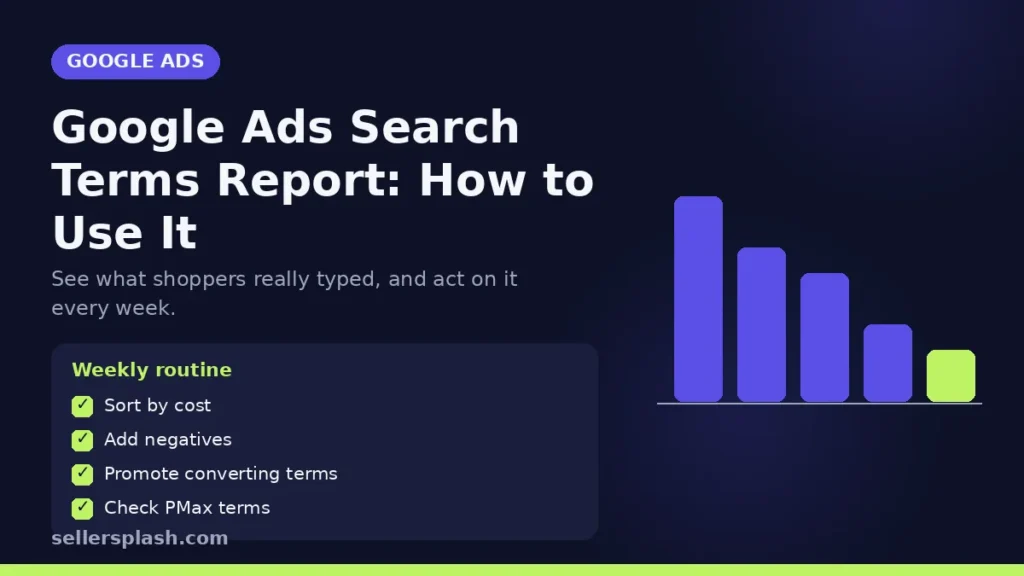
Google Ads Search Terms Report: How to Use It
The Google Ads search terms report shows the actual searches that triggered your ads, as opposed to the keywords you chose. Google's help page describes it as a list of search terms that a significant number of people used and that resulted in your ad being shown. You find it under Campaigns, then Insights and reports, then Search terms. For an online store, it is the fastest way to find wasted spend, missing keywords and new product ideas. This guide explains how to read it and a simple weekly routine.
Where to Find the Report
Google's steps are short:
- In your Google Ads account, select Campaigns in the left navigation panel.
- Go to Search terms within the Insights and reports sub menu.
From there you can change columns, download the data, segment by time, conversions, device or network, and expand the table. One column worth adding right away is Keyword, which Google says does not show by default.
The Two Columns That Matter Most
| Column | What it tells you | What to do with it |
|---|---|---|
| Keyword | Which of your keywords matched the search and triggered the ad | Spot keywords that pull in the wrong searches |
| Match type | How closely the search relates to the keyword | Tighten or loosen match types where needed |
The match type column often confuses people. Google explains that the search term match type can differ from the keyword's match type, because broader keywords can still match searches in narrower ways. In Google's example, a broad match keyword purple flowers that triggers on the search "purple flowers" shows as an exact match in the report.
Close variants also appear. Google says they can include singular and plural forms, acronyms, stem words such as floor and flooring, abbreviations, accents and variants with the same meaning.
What the Report Does and Does Not Show
- It lists terms used by a significant number of people, so not every single search appears.
- Dynamic Search Ads and Shopping targeting do not use keywords. Google says terms matched to them return no keyword and show "Exact" in the match type field.
- Store visits and store sales conversions are not compatible with the report.
Search Terms for Performance Max
Stores running Performance Max get their own view. Google's Performance Max search terms article says to open the Search terms report and choose Search terms and landing pages for Performance Max from the dropdown. It shows metrics by search term together with landing pages and ad formats, and the ad format segment separates Shopping ads from text ads. Our Performance Max guide for ecommerce covers the rest of the setup.
A Weekly Routine for Stores
1. Sort by cost
Start with the terms that spent the most in the last 7 to 30 days. A few expensive irrelevant terms usually matter more than hundreds of cheap ones.
2. Add irrelevant terms as negatives
Google's own example: if you sell eyeglasses and "wine glasses" triggers your ads, you might add "wine" as a negative keyword. Google also notes that negative keywords automatically account for casing and misspellings. Our negative keywords guide covers lists and match types.
3. Promote converting terms
When a search term converts well and is not yet a keyword, add it to the ad group that sends people to the closest product or category page.
4. Check which keyword triggered each term
If one keyword keeps matching searches for products you do not sell, review its match type or move it to a tighter ad group.
5. Use terms to improve ads
The words shoppers actually use make strong headlines. Better matching between search and ad also helps the ad relevance part of Quality Score.
Quick Checklist
- Keyword column added to the report
- Terms sorted by cost, last 7 to 30 days
- Irrelevant terms added as negatives
- Converting terms added as keywords in the right ad group
- Performance Max search terms and landing pages reviewed
- Routine repeated every week
Where an Agency Fits
Search term reviews are simple but easy to skip. Our Google Ads management service runs them every week and turns what shoppers type into better keywords, negatives and ads.
Want a second look at where your search budget goes? The Full AI Visibility Audit ($99) reviews how search and AI assistants see your brand, and the Deep Growth Audit ($249) adds search, traffic, ads and product feed checks with a 90 day plan.
Frequently Asked Questions
Where is the search terms report in Google Ads?
Select Campaigns in the left navigation panel, then go to Search terms within the Insights and reports sub menu.
Why does the report show a different match type than my keyword?
Google explains that broader keywords can still match searches in narrower ways, so a broad match keyword can appear as an exact match for a search that matches it exactly.
Why don't I see every search in the report?
Google says the report lists search terms that a significant number of people have used, so low volume searches may not appear.
Can I see search terms for Performance Max?
Yes. In the Search terms report choose Search terms and landing pages for Performance Max to see terms with their landing pages and ad formats.
Do negative keywords cover misspellings?
Google says negative keywords automatically account for casing and misspellings, so you don't need to add them separately.
How often should I check search terms?
Weekly is a practical rhythm for most stores, sorting by cost so the most expensive irrelevant searches get fixed first.
AI search and ads readiness checklist
25 checks for Amazon, Walmart and Shopify sellers: tracking, product feeds, Google, Bing and Meta ads, and getting cited by ChatGPT, Perplexity and Google AI Overviews. Two pages, about 20 minutes.
- Break-even ROAS table by margin
- The AI search (AEO) checks most stores miss
- A simple score that tells you what to fix first
No spam. We use your email to send the checklist and follow up about it.
Want to see where your store stands in AI search? Get the Full AI Visibility Audit for $99 or the Deep Growth Audit for $249.
Get your AI visibility audit